
How to Convert AI-Generated HTML to Elementor (Without Rebuilding Everything)

You asked ChatGPT, Claude, or Lovable to build you a page. It took 30 seconds. The result looks great — clean layout, proper typography, smooth animations. Now you need it inside WordPress. Specifically, inside Elementor, so your client or your team can actually edit it.

And that’s where everything grinds to a halt.

Elementor doesn’t accept HTML files. You can paste code into an HTML widget, but that produces a frozen block — not a real page. Buttons, headings, and sections are locked inside raw markup with no way to adjust typography, change colors, or swap images through the Elementor interface. It’s not a page. It’s a screenshot wrapped in a div.

This guide covers how to properly convert AI-generated HTML to Elementor — producing native containers, widgets, and editable elements rather than a monolithic HTML dump.

Why AI-Generated HTML Doesn’t Import Into Elementor Natively

Elementor is a visual builder built on its own JSON data structure. Every element on the page — a heading, a button, a container — is stored as a JSON object with specific settings like font size, padding, background color, and widget type. When you build a page inside Elementor, you’re populating that JSON through the visual interface.

HTML has no concept of this structure. It’s a flat document. When an AI generates an HTML page, it has no idea what Elementor’s data model looks like. The gap between the two formats is what makes importing AI HTML into Elementor so painful.

The workarounds most people try:

  • HTML widget: Pastes raw code into a single widget. Looks right visually but is completely uneditable. No Elementor controls. No responsive adjustments. No client handoff.
  • Manual rebuild: Recreate the page element by element inside Elementor. Takes 2–6 hours per page, even for experienced developers.
  • Freelancer on Fiverr: Someone else does the manual rebuild. $50–$450 per page. Takes 24–72 hours.

None of these scale. If you’re converting more than one or two pages, you need a better approach.

The Right Way: Convert HTML to Native Elementor Widgets

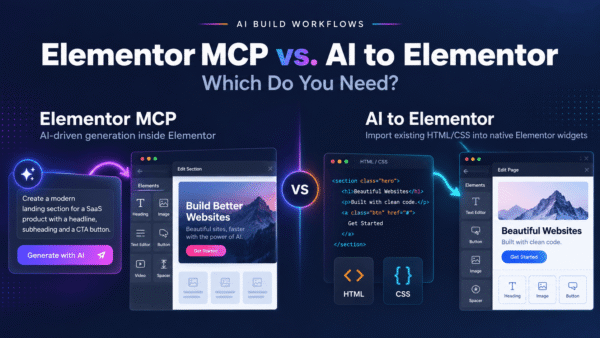
The correct approach is to parse the HTML and CSS, analyze the layout structure, and rebuild it as Elementor JSON — with each element mapped to the appropriate native widget.

That’s exactly what AI to Elementor does. It’s a WordPress plugin that takes any HTML file (from ChatGPT, Claude, Lovable, bolt.new, v0.dev, or any other source) and converts it into a native Elementor template.

The output isn’t an HTML widget. It’s real Elementor structure:

  • Heading tags become native Heading widgets
  • Paragraphs become Text Editor widgets
  • Styled links and CTA elements become Button widgets
  • Layout containers map to Elementor Containers with correct flex properties
  • Images become native Image widgets
  • Background colors, gradients, padding, and typography are all applied as native Elementor settings

When you open the converted template in Elementor, everything is editable. Click a heading, change the text. Click a button, update the URL. Adjust padding with the slider. Hand it to a client who’s never touched code.

Step-by-Step: Converting AI HTML to Elementor

Step 1: Generate your HTML page with AI

Use any AI tool — ChatGPT, Claude, Lovable, bolt.new, or v0.dev. For best results, ask the AI to use inline styles rather than external stylesheets, semantic HTML tags, and flexbox layouts. The AI Guidelines page on our site has an exact prompt you can copy and paste.

Step 2: Install the AI to Elementor plugin

Download the plugin from your account after purchasing at aitoelementor.com. Install it via WordPress → Plugins → Add New → Upload Plugin. Activate it. Elementor (free or Pro) must already be installed.

Step 3: Activate your license

Go to AI to Elementor → Settings in your WordPress admin. Enter your license key (format: HTE-XXXX-XXXX-XXXX-XXXX) and click Activate.

Step 4: Convert your HTML

Go to AI to Elementor → Convert. You can either paste your HTML directly into the text box or upload the HTML file. Give the template a name, then click Convert. The process takes 5–15 seconds.

Step 5: Import and edit

Once conversion is complete, the template appears in your Elementor Template Library under My Templates. Open any page in Elementor, click Add Template, and insert it. Every element is now fully editable in the Elementor visual editor.

What Converts to Native Widgets (and What Doesn’t)

The converter maps approximately 84% of elements to native Elementor widgets. The remaining 16% fall back to HTML widgets — but only for elements that genuinely have no Elementor equivalent.

Elements that convert natively:

  • Headings (h1–h6)
  • Paragraphs and text blocks
  • Buttons and styled CTAs
  • Images (with alt text preserved)
  • Video embeds (YouTube, Vimeo)
  • Dividers and separators
  • Layout containers (with padding, margin, background, flex settings)
  • Accordion / FAQ sections

Elements that fall back to HTML widget (by design):

  • Inline SVG icons
  • Forms (Elementor Form widget is Pro-only)
  • Navigation bars with JavaScript behavior
  • CSS Grid layouts (Elementor uses flexbox only)
  • Fixed-size icon circles (e.g., 48×48px step indicators)

The HTML widget fallbacks still look correct visually — they just aren’t editable through Elementor controls. For most pages, this affects only decorative or structural elements, not the content your client needs to update.

Real Results: What 95.5% Pixel Fidelity Means

The converter is tested against 18 real-world page types — landing pages, restaurant sites, agency portfolios, blog templates, SaaS product pages, and more. Average pixel match across all pages: 95.5%.

That means the converted Elementor template looks essentially identical to the original HTML in a browser. Same layout, same fonts, same colors, same spacing. The difference is that the Elementor version is fully editable and lives inside your WordPress site.

Which AI Tools Produce the Best Results

All major AI HTML generators work. Here’s what to expect from each:

  • ChatGPT: Produces clean, semantic HTML. Use GPT-4o for best results. Ask for inline styles explicitly.
  • Claude: Excellent HTML output. Tends to produce well-structured, accessible markup.
  • Lovable: Generates React-based UI, but you can export as static HTML. Works well with the converter.
  • bolt.new: Outputs full HTML/CSS/JS. Best to download the HTML file directly and upload to the converter.
  • v0.dev: Primarily React components, but can produce static HTML. Needs a quick copy-paste step to get clean HTML output.

The Business Case: Why This Matters

At $47/year with unlimited conversions, the plugin pays for itself on the first use — even if you’re only saving one hour of manual rebuilding per month.

For agencies and freelancers, the math is even clearer. A single page rebuild on Fiverr costs $50–$450. The annual subscription costs less than most individual rebuild jobs. For teams doing 5+ Elementor projects per month, the time savings compound quickly.

For AI-first workflows — where ChatGPT or Lovable generates the initial design and a developer handles the WordPress integration — this plugin eliminates the biggest bottleneck in the entire pipeline.

Get Started

If you’re building pages with AI tools and need them in Elementor, the manual rebuild workflow is a solved problem. AI to Elementor converts your HTML into a native, fully editable Elementor template in under a minute.

$47/year. Unlimited conversions. 30-day money-back guarantee.

Get AI to Elementor →

Frequently asked questions

Everything you need to know about converting AI-generated HTML to Elementor natively.

What does “AI-generated HTML” mean in this context?
AI-generated HTML refers to web page markup produced by AI design and coding tools — v0.dev, Bolt.new, Lovable.dev, ChatGPT, Claude, and similar. These tools output HTML (sometimes with embedded CSS and JavaScript) that renders a complete webpage visually but needs conversion to work as a native template inside WordPress page builders like Elementor.
Why can’t I just use the Elementor HTML widget for AI-generated pages?
You can paste AI HTML into Elementor’s HTML widget, but the result is a single “frozen” code block — visually correct but uneditable through Elementor’s visual panels. You can’t click a heading to change its font, adjust padding with sliders, or swap images through the media library. For client work or long-term maintenance, this defeats the purpose of using WordPress and Elementor.
What does “95.5% pixel fidelity” actually mean?
It means that across hundreds of real AI-generated pages tested, the average pixel-level match between the source HTML rendering and the converted Elementor page is 95.5%. The remaining 4.5% typically consists of minor font-rendering differences or tiny spacing adjustments that take seconds to fix inside Elementor’s visual editor.
Which AI tools produce the best conversion results?
Tools that output clean semantic HTML5 with inline styles convert best: ChatGPT (with a well-crafted prompt), Claude, and v0.dev produce high-fidelity output consistently. Lovable.dev and Bolt.new work well after exporting static HTML. Output quality depends largely on the prompt — asking for “semantic HTML5 with inline CSS, no Tailwind or JS frameworks” yields the cleanest input for conversion.
How is this different from cloning or scraping tools?
Cloning tools like ClonewebX take rendered HTML and reproduce it as layout inside WordPress, typically as generic div containers with embedded styles. AI to Elementor instead parses the HTML semantically and maps each element (headings, buttons, images, containers) to its native Elementor widget equivalent — preserving the full visual editor experience rather than producing a layout clone.
Do I need coding knowledge to use this?
No. The workflow is: paste or upload HTML into the plugin interface inside WordPress, click Convert, and insert the resulting template into any page. No HTML, CSS, or JavaScript editing is required. The plugin handles the semantic mapping, font registration, and Elementor widget generation automatically.
What’s the business case for using this over manual rebuilding?
Manual rebuilding typically takes 4 to 8 hours per landing page for a professional WordPress developer. At $50 per hour billable, that’s $200 to $400 of time per page. AI to Elementor runs the conversion in under 60 seconds at $47 per year for unlimited use — effectively $4.70 per project across 10 client sites. The ROI is measured in hours recaptured, not plugin cost.
Share the Post:

Related Posts