If you design pages in v0.dev, Bolt.new, Lovable, or ChatGPT and deliver them on WordPress with Elementor, you’ve probably evaluated both AI to Elementor and ClonewebX. They solve the same surface-level problem — getting AI-generated HTML into a WordPress page — but they do it in fundamentally different ways, and those differences determine which one fits your workflow.
This is a direct comparison, not a sales pitch. We’ll walk through what each tool actually does, where each one wins, and the specific situations where one is clearly better than the other.
Quick verdict: which tool should you choose?
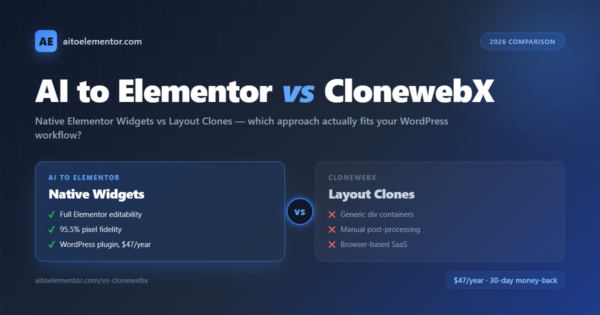
Use AI to Elementor if you need real, editable Elementor widgets — where every heading, button, image, and container can be clicked and adjusted in the Elementor visual editor exactly like a hand-built page. This is the right choice for agencies delivering client sites, freelancers who will maintain pages over time, and anyone who values future editability as much as speed.
Use ClonewebX if you need a visual copy of a live webpage into WordPress and you’re comfortable with manual post-processing for spacing, typography, and animations. ClonewebX is closer to a “layout clone” approach — you get structure and style in WordPress, and then you refine.
Both tools ship something usable. The real question is what you want to do with the result afterward.
The core architectural difference
ClonewebX: layout cloning
ClonewebX takes AI-generated sites or live URLs and exports them into WordPress with Elementor layouts preserved. The output contains the structure, colors, and styling — but the underlying components are typically generic div containers and styled HTML rather than Elementor’s semantic widget library. Users report that “not everything exports perfectly” and that “after importing you usually need manual post-processing as spacing, font sizes, or animations often aren’t quite right.”
This is the trade-off inherent in the cloning approach: you get speed, but the widgets you see in Elementor’s editor don’t always behave like native Elementor elements. Editing a heading may require working with raw HTML inside a generic block rather than using Elementor’s typography controls.
AI to Elementor: native widget mapping
AI to Elementor works differently. Instead of cloning the rendered output, it parses the HTML semantically and maps each element to a native Elementor widget. A <h1> becomes an Elementor Heading widget. A <button> becomes an Elementor Button widget. An <img> becomes an Elementor Image widget. Containers map to Elementor’s modern container system with full flex and grid support.
The result: when you open the converted page in Elementor, every element is clickable, and every widget shows the full Elementor settings panel — padding sliders, typography controls, color pickers, responsive breakpoints, entrance animations. It behaves exactly like a page you built by hand in Elementor, because structurally, it is one.
The practical consequence: With ClonewebX, your client or team member needs to understand HTML and CSS to make many edits. With AI to Elementor, anyone who can use Elementor’s visual editor can fully edit the converted page.
Side-by-side feature comparison
| Feature | AI to Elementor | ClonewebX |
|---|---|---|
| Output type | Native Elementor widgets (Heading, Button, Image, Container, Text Editor) | Layout clone with generic div containers and embedded styles |
| Editability in Elementor | Full — every widget editable via Elementor’s visual panels | Partial — layout visible, deep edits often require HTML |
| Pixel fidelity | 95.5% average, tested on hundreds of pages | Varies by input; manual post-processing typically needed |
| Input sources | HTML from v0.dev, Bolt.new, Lovable, ChatGPT, Claude, hand-written HTML | AI-generated websites, live URLs |
| Integration | Native WordPress plugin — works inside your WordPress admin | External tool — generates export code you import into WordPress |
| Conversion time | Under 60 seconds per page | Varies; depends on page complexity and post-processing |
| CSS handling | Maps CSS to Elementor widget settings; preserves layout behavior | Embedded styles; some CSS transferred, some requires manual fixing |
| Animation preservation | CSS animations and transitions preserved on supported elements | Animations often need manual adjustment post-import |
| Font handling | Automatic Google Fonts detection and registration | Manual font handling typically required |
| Workflow | Install plugin → upload HTML → click Convert → edit in Elementor | Process URL or site in ClonewebX → get export code → import into WordPress |
| Pricing | $47 per year — unlimited conversions (up to 50 per day) | Varies by plan; typically subscription-based |
| Where it runs | Inside your WordPress admin | Browser-based service |
| Best for | Agencies, freelancers, anyone who will edit the page later | One-off layout clones where post-editing burden is acceptable |
When ClonewebX is the right choice
ClonewebX is genuinely useful in specific situations:
- You need to clone a live webpage (not AI-generated HTML) into WordPress quickly
- You’re comfortable with CSS and don’t mind refining the output manually
- The converted page is a one-off rather than something you’ll maintain long-term
- You don’t need deep integration with Elementor’s widget ecosystem
If any of those describe your project, ClonewebX is a reasonable tool. It works, people use it, and for the right job it delivers value.
When AI to Elementor is the right choice
AI to Elementor is the better fit when:
- Every element of the converted page needs to be editable in Elementor’s visual editor — no HTML required
- You’re delivering pages to a client who will edit them themselves over time
- You’re converting AI-generated HTML specifically (v0, Bolt, Lovable, ChatGPT) where native widget mapping matters
- You need the conversion to happen inside your WordPress admin rather than through an external tool
- You value predictable output fidelity (95.5% pixel accuracy) over the cost and effort of manual post-processing
- You’re running an agency where junior team members need to work with the converted pages without touching code
The editability question is the real differentiator
The most common mistake WordPress professionals make when evaluating HTML-to-Elementor tools is focusing only on how the output looks — the visual fidelity of the first render. That matters, but it’s not the whole story.
The more important question is: what happens when you need to change something three months later?
With AI to Elementor’s native widget output, changing a button color is two clicks in Elementor’s color picker. Adjusting padding is a slider. Swapping an image is the Elementor media library. Your non-technical clients can handle these edits themselves.
With cloning approaches like ClonewebX, the same changes may require opening the underlying HTML, finding the right class or inline style, and editing it — or rebuilding that section manually. For one-off projects this is fine. For long-lived client sites, the maintenance cost compounds.
This is why AI to Elementor exists specifically as a WordPress plugin with native widget output: the entire value proposition is that the converted page behaves like a hand-built Elementor page in every way that matters for ongoing editing.
Pricing: the real cost isn’t the subscription
Both tools are relatively affordable on subscription pricing. The real cost difference shows up in the hours you spend after the initial conversion.
- AI to Elementor at $47 per year: the plugin converts the page and the work is essentially done. Occasional minor adjustments happen in Elementor’s visual editor — not in code.
- ClonewebX subscription plus post-processing time: if post-processing takes 30 to 60 minutes per page on average, and you deliver 2 to 3 pages per month at a $50 per hour rate, you’re paying $100 to $450 per month in hidden time cost on top of whatever ClonewebX costs directly.
The math shifts dramatically in favor of AI to Elementor once you factor in total cost of ownership — not just tool cost.
How to migrate from ClonewebX to AI to Elementor
- Install AI to Elementor on your WordPress site (available at aitoelementor.com)
- Activate your license ($47 per year)
- Take the HTML source from any AI tool (v0, Bolt, Lovable, ChatGPT) or export from your existing workflow
- Upload the HTML to AI to Elementor via the plugin interface
- Click Convert — under 60 seconds later, you have a native Elementor template ready to insert into any page
- Compare the output to what ClonewebX produces for the same input
The 30-day money-back guarantee means you can test both tools on real client work and keep whichever one fits your workflow better.