When developers search for how to import HTML into Elementor, the most common answer they find is: “use the HTML widget.” Paste your code in, it renders on the page, done.
It works — in the narrowest sense. The page looks right. But if you try to edit it, you’ll immediately understand the problem. There’s nothing to click. No typography controls. No padding sliders. No way to change the button color without writing code. The Elementor HTML widget produces a frozen block, not a real page.
This article explains exactly what the HTML widget does and doesn’t do, why it’s the wrong tool for most situations, and what the alternative looks like.
What the HTML Widget Actually Is
The HTML widget is one of Elementor’s basic widgets. It has a single field: a code editor where you can type or paste raw HTML. When you save and preview, Elementor renders that HTML inside the page.
That’s all it does. It’s essentially a <div> wrapper around your code. Elementor doesn’t parse the HTML. It doesn’t understand what’s inside. It doesn’t create separate widgets for your headings, buttons, or images. It just outputs your code as-is.
From Elementor’s perspective, the entire content of the HTML widget is a single black-box element. You can move it around the page as a whole block. You can add padding to the container it sits in. But you cannot interact with anything inside it through the Elementor interface.
The Practical Consequences
Here’s what happens in practice when you use the HTML widget for a full page layout:
- Client can’t edit text. Your client opens Elementor, clicks on a heading — nothing happens. The heading is inside the HTML widget. To change it, they need to open the widget’s code editor and edit raw HTML.
- No responsive controls. Elementor’s built-in responsive breakpoints don’t apply inside the HTML widget. If your HTML has responsive CSS, it may work — but you can’t use Elementor’s responsive toggles to adjust padding, font sizes, or visibility per device.
- No Elementor styling controls. The widget has no typography section, no background section, no border section — because Elementor doesn’t know what’s inside. To change anything, you edit code.
- Global styles don’t apply. If you update your site’s global color palette or typography in Elementor, those changes won’t affect content inside an HTML widget.
- Harder to maintain. When you need to update the page, you’re back to editing raw HTML rather than using the visual editor. Any developer or agency who works on the site after you has to understand the original code structure.
When the HTML Widget Is Actually the Right Choice
To be fair, there are legitimate uses for the HTML widget. It’s the right tool when:
- You’re embedding a third-party script or widget (chat, booking, forms)
- You need a small, isolated custom element that will never need visual editing
- You’re adding a code snippet — a countdown timer, a custom table, a pricing badge
- The element has no Elementor native equivalent and will stay static forever
In all these cases, the HTML widget is appropriate. The problem is when people use it for entire page layouts because they want to import a designed HTML page into Elementor. That’s the wrong tool for the job.
What Native Elementor Widgets Actually Give You
When a page is built with native Elementor widgets — Heading, Text Editor, Button, Image, Container — every element has its own set of Elementor controls:
- Heading widget: Click to edit text inline. Typography panel controls font family, size, weight, line height, letter spacing. Color picker. Responsive size overrides per breakpoint.
- Button widget: Edit label text, URL, target. Style controls for background color, text color, border, border-radius, hover state. Responsive visibility.
- Container: Flex direction, flex wrap, gap, align items, justify content — all editable visually. Background color, gradient, image, video. Padding and margin with responsive overrides.
- Image widget: Click to swap the image from the media library. Alt text, size, link target all accessible in the panel.
This is what makes Elementor useful. A client can open the page, click a button, update the text and URL, and publish — without ever touching code. That’s the outcome the HTML widget cannot deliver.
The Solution: Convert HTML to Native Elementor Widgets
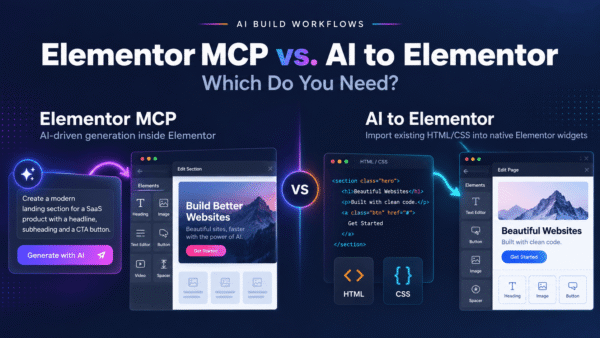
If you have an HTML page you need in Elementor — from a designer, from an AI tool, from a template — the answer is not the HTML widget. The answer is conversion: parsing the HTML and CSS and rebuilding it as native Elementor JSON.
AI to Elementor is the plugin that does this. It takes any HTML file and converts it to a native Elementor template where:
- Every
<h1>–<h6> becomes a Heading widget with all typography settings preserved
- Every paragraph becomes a Text Editor widget
- Every styled button or CTA link becomes a Button widget
- Every image becomes an Image widget
- Every layout container becomes an Elementor Container with correct flex settings
- Background colors, padding, margins, borders, and gradients all map to native Elementor settings
The result is a template you insert into any page and edit fully through the Elementor visual interface. No code required.
Native vs HTML Widget: Side-by-Side Comparison
| Capability | HTML Widget | Native Widgets |
|---|
| Edit text without code | ❌ | ✅ |
| Change colors visually | ❌ | ✅ |
| Adjust padding with slider | ❌ | ✅ |
| Responsive breakpoint controls | ❌ | ✅ |
| Global styles apply | ❌ | ✅ |
| Client can edit independently | ❌ | ✅ |
| Works with Elementor AI | ❌ | ✅ |
| Preserves exact visual design | ✅ | ✅ (~95%) |
Performance: Does It Matter Which You Use?
Yes. Native Elementor widgets are rendered server-side using Elementor’s own output system. The HTML is clean, semantic, and optimized. Custom HTML inside the HTML widget is output as-is — which means any bloat, redundant styles, or non-semantic markup in your original code goes directly to the browser.
For Core Web Vitals and page speed, native widgets also benefit from Elementor’s built-in asset management — lazy loading for images, optimized script loading, and CSS aggregation. The HTML widget bypasses these optimizations.
The Bottom Line
The HTML widget is a development tool, not a page builder tool. It’s for custom code snippets and third-party embeds. It’s not designed to import full HTML page layouts, and it shouldn’t be used that way.
If you have an HTML page that needs to be in Elementor — and needs to stay editable — you need native widgets. And the fastest way to get native widgets from HTML is AI to Elementor.
Convert your HTML to native Elementor widgets in 15 seconds: aitoelementor.com
Frequently asked questions
Everything you need to know about why the Elementor HTML widget fails for real design work — and what to use instead.
What exactly is the Elementor HTML widget?
The Elementor HTML widget is a built-in widget that lets you paste raw HTML code directly into an Elementor page. It renders the HTML as-is inside a container, but it doesn’t convert the HTML into native Elementor widgets. The result is a single code block that displays correctly on the frontend but cannot be edited through Elementor’s visual panels.
Why can’t I edit HTML widget content visually in Elementor?
Because the HTML widget treats everything you paste as an opaque code block — Elementor doesn’t parse the HTML structure or recognize individual elements (headings, buttons, images) as separate editable widgets. You see the rendered output but Elementor has no handles on the internal pieces. Changing a color or font requires editing the raw HTML/CSS, not using Elementor’s visual controls.
When is the HTML widget the right choice?
The HTML widget is appropriate for: (1) embedding third-party code snippets like analytics scripts, chat widgets, or payment buttons, (2) pasting in custom CSS or JavaScript that needs to run on a specific page, (3) adding iframes for external content. It is NOT the right choice for anything design-related that you or a client will need to edit later.
What’s the difference between the HTML widget and native Elementor widgets?
Native Elementor widgets (Heading, Button, Image, Text Editor, Container) are individually editable through Elementor’s visual panels. You can click each one and change typography, colors, padding, margins, responsive breakpoints, animations — all through sliders and dropdowns. The HTML widget gives you none of that; it’s a single container rendering whatever code you pasted.
Can I use the HTML widget for AI-generated designs from v0, Bolt, or ChatGPT?
Technically yes, but it produces an uneditable “frozen block” that defeats the purpose of using WordPress and Elementor in the first place. A better approach is to convert the AI-generated HTML to native Elementor widgets using a plugin like AI to Elementor, which maps each HTML element to its semantically correct Elementor widget — preserving full editability in the visual editor.
Does the HTML widget hurt SEO or performance?
Not inherently, if the HTML you paste is clean. But it can cause issues indirectly: (1) Elementor can’t inject SEO-related markup like headings it doesn’t know exist, (2) accessibility features like proper heading hierarchy may be lost if the HTML uses divs instead of semantic elements, (3) you lose Elementor’s built-in responsive handling, so mobile rendering depends entirely on the CSS inside your HTML block.
Can clients edit pages built with the HTML widget?
Not without technical knowledge. Non-technical clients will see a frozen block in Elementor’s editor with no way to change text, colors, or images through the visual interface. Any modification requires opening the HTML code, finding the right element, and editing it manually. This is why agencies that deliver HTML-widget-based pages often end up doing all edits themselves forever.
What should I use instead of the HTML widget for design work?
For design work, convert your HTML to native Elementor widgets. The AI to Elementor plugin parses HTML semantically and maps each element (heading, button, image, container) to its native Elementor widget with full editability — 95.5% pixel fidelity tested on hundreds of pages. You get the speed of HTML-driven design with the long-term editability of a hand-built Elementor page.