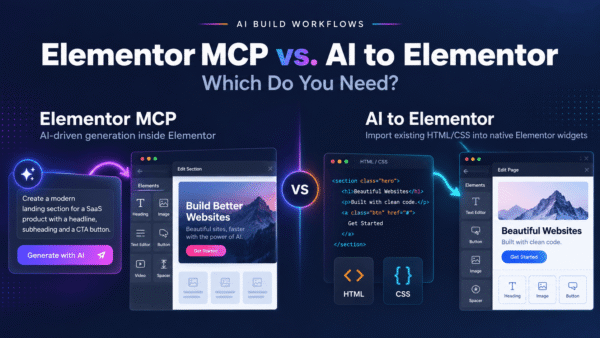

You’ve got a picture of a design you want — a Figma export, a Dribbble shot, a competitor’s landing page you screenshotted, or something an AI image generator dreamed up — and you want it live in WordPress as an Elementor page you can actually edit. So you go looking for a “screenshot to Elementor” button that turns the image into a real page. It doesn’t exist, and the reason is more fundamental than a missing feature.
An image is pixels. Elementor pages are structure. Nothing bridges those two directly — but there’s a reliable two-step workflow that does. Here’s the plan: why you can’t convert an image straight to Elementor, the exact prompt to turn a screenshot into clean HTML, and how that HTML becomes native, editable widgets — with an honest look at where the fidelity really comes from.
Why you can’t convert an image directly to Elementor
A screenshot is a grid of colored pixels. It has no idea that the big text at the top is a heading, that the blue rectangle is a button, or that three boxes in a row form a pricing section. That meaning is obvious to your eye, but it exists nowhere in the file. A PNG doesn’t know what a heading is.
Elementor, on the other hand, is built entirely on structure. Every page is a tree of typed elements — this is a Heading widget, that’s a Button, these sit inside a Container with specific padding. To build one, something has to know the semantics of the design: what each piece is, not just what color it is. So there’s a gap between an image (pure appearance) and an Elementor page (pure structure), and the format that bridges it — the one that expresses visual structure — is HTML. That’s the missing middle step.
The two-step workflow that actually works
The realistic path is two moves, each using the right tool for its job:
- Image → HTML. Use an AI model that can see (ChatGPT, Claude, or v0) to look at your screenshot and generate semantic HTML with CSS that recreates it. This is where the pixels become structure — headings, buttons, sections, real markup.
- HTML → native Elementor widgets. Run that HTML through AI to Elementor, a WordPress plugin that converts it into genuine, editable Elementor widgets — not a frozen block, not a screenshot pasted into a page.
Step one is a perception task, and modern multimodal AI is good at it. Step two is a precision task, and a deterministic converter is built for it. Do both, in order, and you get an editable WordPress page that looks like your image.
Step 1 — Turn your screenshot into clean HTML with AI
Upload your image to a vision-capable AI tool and ask it to rebuild the design as HTML. Your prompt matters a lot here, because everything downstream inherits it — a vague ask produces vague markup; a specific ask produces clean, convertible markup.
A prompt that works
Paste your screenshot into ChatGPT, Claude, or v0 with a prompt along these lines:
Recreate this screenshot as a single, self-contained HTML5 file with inline CSS. Match the layout, spacing, fonts, colors, and proportions as closely as you can. Use semantic tags (header, section, h1–h3, p, button) and modern CSS with flexbox or grid for layout. Do not use any JavaScript framework or external CSS libraries — plain HTML and CSS only. Return the complete file.
Every clause earns its place. Semantic tags give the converter real elements to map to widgets. Inline, self-contained CSS keeps the styling attached to the markup so nothing gets lost. Plain HTML with no framework avoids utility-class soup and JavaScript that wouldn’t survive conversion anyway. And flexbox or grid produces the modern layout Elementor’s container system mirrors cleanly.
Iterate before you convert
Open the AI’s result in a browser and compare it to your screenshot. Off by a bit? Tell it — “make the hero heading larger” or “tighten the spacing between the cards.” Two or three rounds of visual notes usually gets you a page that closely matches the original — and this step is the single biggest lever on your final result.
Step 2 — Convert that HTML into native Elementor widgets
Once you’re happy with the HTML, AI to Elementor takes over. It reads your markup and its computed styles and rebuilds each element as the real Elementor widget it should be — headings become Heading widgets, buttons become Button widgets, images become Image widgets — laid out in Elementor’s modern Container system with full flex and grid.
Because the engine is deterministic and server-side — rule-based, not an AI improvising — the same HTML yields the same widgets every time. It resolves the concrete values your CSS computes to and writes them straight into each widget’s native settings, so fonts (Google Fonts detected and registered automatically), colors, spacing, CSS animations, and hover states carry across at around 95.5% average pixel fidelity. It works with Elementor Free, runs from $47–297/year by tier, and includes one free conversion so you can test your own page first. What you get is a real Elementor page you edit by clicking — every heading retypable, every color a control — not a picture of a page.
Fidelity is a two-link chain — be honest about it
This is the part worth stating plainly. The conversion step is the reliable one: deterministic, high-fidelity, and repeatable. But it can only rebuild what the HTML describes, so the final quality is capped by how well the AI recreated your screenshot as HTML in step one. If the AI misread a layout or guessed a font wrong, the converter faithfully reproduces that mistake as native widgets. Garbage in, garbage out — accurate in, accurate out.
That’s not a weakness to hide; it’s where to spend your attention. Because the second step is dependable, your effort belongs almost entirely in step one — getting the AI’s HTML to genuinely match the image before you convert. A few things stack the odds in your favor:
- Feed a high-resolution, complete screenshot. Crisp, full images give the AI more to work with.
- Name the fonts if you know them. “The headings are Poppins, the body is Inter” removes guesswork the AI would otherwise get wrong.
- Iterate against the original. Compare side by side and correct the AI until the HTML matches.
- Keep it plain HTML and CSS. The cleaner and more semantic the markup, the more precisely it maps to widgets.
Get the HTML right and the conversion carries that quality through faithfully. That’s the whole game.
Screenshot to Elementor: two paths compared
| Aspect | Manual rebuild from the screenshot | AI-generated HTML + native conversion |
|---|---|---|
| How it works | Re-create every section by eye, widget by widget, in Elementor | AI turns the image into HTML, then the engine converts it to native widgets |
| Time per page | Several hours of eyeballing and adjusting | Minutes — a few prompt rounds, then a sub-60-second conversion |
| Where fidelity comes from | Your patience and eye for spacing and color | The AI’s read of the image, kept through a deterministic conversion (~95.5%) |
| Fonts, colors, spacing captured | Manually, value by value, by eye | Carried automatically from the generated HTML’s computed styles |
| Result is editable native widgets | Yes — but only after you build each one | Yes — genuine Heading, Text, Button, Image widgets, ready to edit |
| CSS animations & hover states | Only if you build them yourself | Preserved when present in the generated HTML |
| Where errors creep in | Every value you eyeball and every pixel you nudge | The AI’s HTML — which you review and fix before converting |
| Works with Elementor Free | Yes | Yes |
For the mechanics of the conversion step, see our guide on how to convert AI-generated HTML to Elementor. And to get cleaner, more convertible HTML out of your AI tool in the first place, our AI prompting guidelines are worth reading before you start.
Frequently asked questions
Can AI to Elementor convert a screenshot or image directly?
No, and no tool can, because an image is just pixels with no structure — it doesn’t know which part is a heading or a button. Elementor pages are built from structured, typed widgets, so the image first has to become HTML. The workflow is two steps: use a vision-capable AI to turn the screenshot into HTML, then convert that HTML into native Elementor widgets with AI to Elementor.
How do I turn a screenshot into HTML?
Upload the image to a vision-capable AI tool like ChatGPT, Claude, or v0 and ask it to recreate the design as a self-contained HTML5 file with inline CSS. Multimodal models are good at reading a layout and producing semantic markup with matching styles. Then review that HTML against the original, refine it if needed, and pass it to the converter.
What is the best prompt to convert a screenshot to HTML?
Ask for a single self-contained HTML5 file with inline CSS that matches the layout, spacing, fonts, colors, and proportions of the image, using semantic tags and flexbox or grid, with no JavaScript framework or external CSS libraries. Semantic tags and inline styling give the converter clean, real elements to map onto native widgets, and skipping frameworks avoids markup that wouldn’t survive conversion.
How accurate will the final Elementor page be?
It’s a two-link chain. The conversion itself is deterministic and high-fidelity, at around 95.5% average pixel fidelity, but it can only rebuild what the HTML describes. So the final quality is capped by how well the AI recreated your screenshot as HTML. Get that first step right — high-res image, correct fonts, a couple of refinement rounds — and the conversion carries that quality through faithfully.
Does this work with Figma exports, Dribbble shots, or competitor screenshots?
Yes. Any image works as the starting point, because the workflow doesn’t care where the picture came from — it turns visual design into HTML and then into widgets. Do make sure you have the right to reuse a design; recreating a competitor’s exact page raises originality and copyright questions, so it’s usually best as inspiration rather than a pixel copy.
Do I need Elementor Pro for this?
No. AI to Elementor produces native widgets in Elementor’s container system, which works with Elementor Free. You don’t need a Pro license to turn your AI-generated HTML into an editable page, though Pro adds extra widgets you might want for interactive elements afterward.
Can I edit everything after converting?
Yes. The output is genuine Elementor widgets — Heading, Text, Button, Image, Icon — inside real containers, not a frozen HTML block or an embedded picture. You retype headlines, recolor buttons, swap images, and rearrange sections directly in the Elementor editor, exactly as you would on a page you built by hand.
Turn your design image into an editable Elementor page
Have an AI turn your screenshot into clean HTML, then let AI to Elementor rebuild it as native, fully editable Elementor widgets in about 60 seconds — fonts, colors, and spacing carried through, works with Elementor Free. Honest about where the fidelity comes from, reliable about the conversion.