Blink.new turned your prompt into a working design in the time it takes to read this sentence — a polished frontend with proper layout, real type, and interactions that look intentional. It’s impressive. Then the practical question lands: your client’s website is WordPress, and they expect to edit this page themselves without opening a single line of code.
This is the wall every AI builder runs into. Blink.new hands you code — HTML, CSS, and usually an app running behind it. Your client runs WordPress with Elementor, because that’s the setup that lets a non-technical owner change a headline, swap a photo, or update pricing on their own. Turning a Blink design into a genuinely editable WordPress page is the step the builder leaves to you.
Barely anything exists online about the Blink.new-to-WordPress route yet, so consider this the map. And the route is refreshingly simple, because it rests on the one output every AI builder shares — the HTML it generates. Here’s how to turn that into native, editable Elementor widgets.
What is Blink.new?
Blink.new is an emerging AI app builder in the “vibe coding” category: you describe an app or site in plain language, and it generates a working build you refine by chatting with it. Instead of writing markup by hand, you steer with instructions — “add a testimonials row,” “make the CTA bolder,” “give it a darker theme” — and it produces the frontend, and often the backend logic, for you.
The platform is young and its exact features are still moving, so this guide intentionally avoids claims that could go stale. What holds true across every tool of this kind is the core output: a rendered frontend made of standard HTML and CSS. That rendered markup is what a browser displays, and it’s the raw material for everything that follows. Blink.new designs the page; it doesn’t build your WordPress site — that handoff is yours to make.
The WordPress delivery problem
With a Blink design you’re happy with, the instinct is to copy its HTML and drop it into Elementor’s HTML widget. It renders and it looks correct. But what you’ve placed is a frozen block: one sealed chunk of code inside your page. Your client can’t click a headline to rewrite it, adjust a button color from the Elementor panel, or move the pricing section above the testimonials. Every change comes back to you and a code editor. That’s not a managed WordPress page — it’s a static picture with extra steps.
The alternative people attempt is having an AI rewrite the design as an Elementor template JSON. On a good day that reaches roughly 70–80% of the original, with fonts snapping back to theme defaults, spacing squashed, and animations gone; on a bad day the import fails outright with an error like “the source does not support import.” Either outcome ends with you rebuilding by hand.
The native conversion method: AI to Elementor
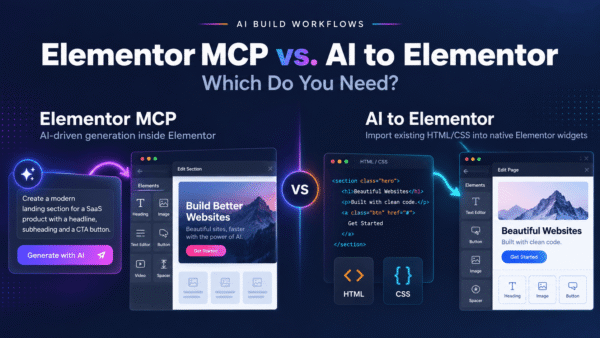
AI to Elementor solves it differently. Rather than asking a language model to invent valid Elementor JSON, it’s a WordPress plugin that parses the HTML and CSS deterministically and maps every element to a proper, native Elementor widget. The input is the HTML Blink.new produced; the engine is a real parser, not a probabilistic guess. Headings become Heading widgets, buttons become Button widgets, sections become Sections and Containers you can rearrange — reproducing the design at around 95.5% pixel fidelity.
What you get back isn’t a frozen HTML block in a single widget, and it isn’t an 80%-accurate JSON approximation. It’s genuine Elementor widgets you can select, drag, and edit exactly like anything you built by hand in the editor.
Step by step
- Design in Blink.new. Prompt and refine your page or sections until you’re happy with them.
- Get the HTML and CSS. Capture the rendered frontend — the HTML a visitor’s browser actually sees, along with its styles. Export it where possible, or copy the rendered page source.
- Paste it into AI to Elementor. The plugin lives in your WordPress admin, so there’s no round-trip to another service and no bridge to keep running.
- Convert. The parser reads the markup and styles and builds the matching native Elementor widgets, preserving fonts, colors, spacing, CSS animations, and hover states.
- Edit in Elementor. Open the page and every part is a real widget — rewrite copy, swap images, tweak padding, restyle, and publish without touching code.
Because the parsing is deterministic, identical input yields identical output every time — no “import failed” lottery, no re-rolling a prompt hoping the next JSON behaves. And it runs on Elementor Free, so you don’t need Elementor Pro to get native widgets out the other end.
Frozen HTML vs. JSON hack vs. native conversion
| Paste into HTML widget | AI-generated Elementor JSON | AI to Elementor | |
|---|---|---|---|
| What you get | One frozen HTML block | A guessed template JSON file | Native, editable Elementor widgets |
| Editable in Elementor | No — locked code | Only after fixing it by hand | Yes — immediately |
| Reliability | Renders, but unusable to edit | Non-deterministic, often fails | Deterministic, repeatable |
| Fonts, colors, spacing | Rendered but not editable | Often reset to theme defaults | Preserved and editable |
| Animations & hover states | Static or lost | Usually lost | Preserved |
| Fidelity to original | Visual only, not editable | ~70–80%, varies per run | ~95.5% pixel fidelity |
| Elementor Free | Works, but frozen | N/A | Yes |
| Cost | Free | Free + hours of cleanup | $47–297/year, one free conversion |
What converts well, and what doesn’t
Being straight about the limits beats overselling. Here’s where native conversion delivers and where a Blink.new build needs a different plan.
Converts cleanly
- Standard layout structures: heroes, feature grids, pricing tables, testimonial rows, CTA sections, footers.
- Typography defined in the CSS: font families, sizes, weights, line spacing.
- Colors and backgrounds, including gradients.
- Spacing: margins and padding at the section, column, and element level.
- CSS animations and hover states carried in the rendered frontend.
- Buttons, images, and links mapped to their proper Elementor widget equivalents.
What doesn’t convert (and why)
- Backend and app logic. If your Blink.new project runs server logic, authentication, or a database, that’s application functionality rather than page markup — Elementor is a page builder, so it stays on a real app host.
- Dynamic, data-driven interactivity. Logged-in views, live data, and complex JavaScript app behavior don’t translate into static Elementor widgets.
- Form processing. The form’s markup converts, but where it sends data is up to you — wire it to a WordPress form handler or your own backend after conversion.
- External assets. Images pulled from remote URLs should be added to your Media Library so they don’t break down the line.
For the wider view on getting AI-built sites into WordPress, see our pillar guide on vibe coding to WordPress. And for the nuts and bolts of the conversion itself, read how to convert AI-generated HTML to Elementor.
Frequently asked questions
Can I put a Blink.new design on WordPress?
Yes — its frontend, at least. The HTML and CSS Blink.new generates converts into native, editable Elementor widgets, which is precisely what you want for a landing page, pricing page, or marketing site in WordPress. If your Blink project also runs backend app logic, that portion stays on a real app host; the page visitors see is what becomes an editable Elementor page.
How do I get the HTML out of Blink.new?
Grab the rendered frontend of your design — the HTML a browser actually shows, plus its CSS. Export it if Blink.new offers an export, or copy the rendered page source. That markup is what you paste into AI to Elementor. Since tools in this space are still maturing, use whatever yields the cleanest rendered HTML; the parser reads standard markup no matter how you captured it.
Why not just paste the Blink HTML into Elementor’s HTML widget?
You can, but you’ll get a frozen block — a single chunk of code your client can’t edit visually. They can’t rewrite headlines, recolor buttons, or reorder sections without returning to the code. Native conversion fixes this by turning each element into a real, editable Elementor widget instead of sealed markup.
Are CSS animations and hover states preserved?
Yes. Because the converter reads the actual CSS instead of flattening the page, it keeps fonts, colors, spacing, CSS animations, and hover states in the resulting widgets — so the converted page behaves like the design Blink.new produced, not a static snapshot of it.
Does it work with Elementor Free?
Yes. AI to Elementor outputs standard native Elementor widgets that work on Elementor Free — no Pro subscription needed. Any Pro features you already have will keep working, but they aren’t required for the conversion.
How much does AI to Elementor cost?
Plans range from $47 to $297 per year depending on usage and the number of sites. You also get one free conversion, so you can run your own Blink.new design through it and see the native, editable result before spending anything.
Turn your Blink.new design into a real WordPress page
Blink.new makes designing fast. The bottleneck was never the design — it was the fragile handoff into WordPress, where the frontend either freezes into a code block or arrives at 80% as a JSON guess you rebuild by hand. Instead, convert the HTML Blink.new generates into native, editable Elementor widgets in one deterministic step, with fonts, colors, spacing, animations, and hover states intact.
Try AI to Elementor and turn your next Blink.new design into an editable page your team can actually maintain — your first conversion is free.