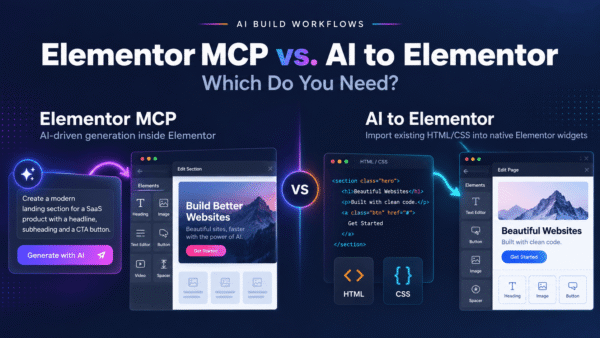

Converting HTML into Elementor is one of the most common jobs in the WordPress world right now — you have a design (from an AI tool, a Figma file, a static template, or a hand-coded page) and you need it living inside Elementor where a client can maintain it. Several tools promise to do this. Some deliver editable widgets; some hand you a frozen block; some quietly drop your animations. This is an honest, no-spin comparison of the real options in 2026, including where each one falls short.
Full disclosure: this guide is published by AI to Elementor, one of the tools listed. We’ve tried to name every competitor fairly and describe their trade-offs the way their own docs and users do — because you’ll find out the truth in ten minutes anyway, and a rigged listicle helps nobody.
1. AI to Elementor
Output: Native, editable Elementor widgets. Price: $47–297/year. Best for: AI-generated and hand-coded HTML you need to keep editable.
AI to Elementor parses your HTML and CSS deterministically and maps each element to a real Elementor widget — headings, buttons, sections, containers — rather than dumping the markup into a single frozen block or a lossy 70–80% JSON approximation. Fonts, colors, CSS animations, and hover states are preserved. It works with Elementor Free, and there’s one free conversion to test your own page.
- Pros: Genuinely editable output; deterministic (predictable, not a guess); preserves animations and hover states; works with Elementor Free; one free conversion.
- Cons: It’s a paid plugin (annual license); it converts HTML/CSS, so you need markup to feed it rather than a live URL scrape.
2. ClonewebX
Output: Visual clone of a page. Best for: Quickly replicating a static layout’s look.
ClonewebX aims to reproduce a webpage visually inside Elementor. It’s fast for simple, static designs. The important caveat comes from its own documentation: it drops JavaScript, animations, carousels, and e-commerce functionality. So if the page you’re cloning relies on interactive elements, expect to rebuild those by hand afterward.
- Pros: Fast visual replication; good for static, presentational pages.
- Cons: Per its own docs, loses JS, animations, carousels, and e-commerce; not ideal for interactive or dynamic sites.
3. Web2Elementor
Output: Elementor structure via copy-paste. Price: Free (1 use every 2 months). Best for: One-off, budget conversions.
Web2Elementor is a browser-based tool that follows a copy-paste workflow — you feed it content and paste the result into Elementor. The free tier is genuinely free but rate-limited to roughly one use every two months, which makes it a fit for occasional single conversions rather than production work.
- Pros: Free to try; browser-based, no install; fine for a single occasional page.
- Cons: Tight free-use limit (about 1 per 2 months); copy-paste workflow adds manual steps; not built for volume.
4. UiChemy
Output: Figma-to-Elementor conversion. Price: ~$29/month. Best for: Designers who work primarily in Figma.
UiChemy focuses on the Figma-to-Elementor path. If your source of truth is a Figma file, it’s a natural fit. Users generally report output around 80% clean, meaning some cleanup remains, and there’s a steeper learning curve to get consistent results. It’s subscription-priced rather than a one-time or annual license.
- Pros: Strong for Figma-first workflows; converts designs directly from the design tool.
- Cons: ~80% clean output means manual cleanup; steeper learning curve; monthly subscription; Figma-focused rather than general HTML.
5. Novamira
Output: Elementor via Claude Code + MCP. Price: €49/year. Best for: Developers comfortable with a technical setup.
Novamira takes a developer-oriented route, using Claude Code with an MCP integration to generate Elementor output. The annual price is low, but it requires setup — you need to be comfortable configuring Claude Code and MCP before you convert anything. For a technical user that’s fine; for a non-developer it’s a barrier.
- Pros: Inexpensive annual price; AI-driven; appealing to developers already using Claude Code.
- Cons: Requires Claude Code + MCP setup; not beginner-friendly; more moving parts to maintain.
6. Manual rebuild
Output: Whatever you build. Price: Free (your time). Best for: Full control and pixel-exact results.
You can always rebuild the design by hand in Elementor. This gives you total control and a clean widget tree with no conversion artifacts — at the cost of roughly 4–8 hours per page. For a single hero section it’s defensible; across a full site it gets expensive fast.
- Pros: Complete control; clean native structure; no license cost; no conversion quirks.
- Cons: Slow (4–8 hours per page); doesn’t scale; your time isn’t actually free.
7. Elementor HTML widget
Output: Frozen HTML block. Price: Free (built into Elementor). Best for: Embedding a snippet you never need to edit.
The simplest option is Elementor’s built-in HTML widget — paste your markup and it renders. But the result is a frozen, uneditable block: your client can’t click a headline to retype it, recolor a button, or rearrange sections in the Elementor panel. It’s fine for a one-off embed, wrong for a page anyone needs to maintain.
- Pros: Free and built in; instant; renders any valid HTML.
- Cons: Output is frozen and uneditable in Elementor; no visual editing for clients; not a real page-builder result.
Comparison table
| Tool | Output type | Editable? | Animations | Price | Best for |
|---|---|---|---|---|---|
| AI to Elementor | Native widgets | Yes, fully | Preserved | $47–297/yr | Editable HTML/AI output |
| ClonewebX | Visual clone | Partial | Dropped | Paid | Static visual clones |
| Web2Elementor | Copy-paste structure | Partial | Limited | Free (1 / 2 mo) | Occasional one-offs |
| UiChemy | Figma conversion | ~80% clean | Partial | ~$29/mo | Figma-first designers |
| Novamira | AI (Claude + MCP) | Yes | Varies | €49/yr | Technical developers |
| Manual rebuild | Hand-built | Yes, fully | Rebuilt by hand | Free (4–8 hrs) | Full control |
| Elementor HTML widget | Frozen block | No | Kept but frozen | Free | Non-editable embeds |
How to choose
Match the tool to your actual constraint:
- You need the output to stay editable by a client: AI to Elementor (native widgets) or a manual rebuild. Everything else compromises editability.
- Your source is a Figma file: UiChemy is purpose-built for that path — budget for cleanup.
- You need it once and free: Web2Elementor’s free tier or the Elementor HTML widget (if it never needs editing).
- You’re a developer who likes tooling: Novamira, if you’re happy configuring Claude Code and MCP.
- The design is interactive (carousels, JS, e-commerce): avoid visual-clone tools that drop those; use native conversion or rebuild.
- You want pixel-exact control and have the hours: manual rebuild.
Frequently asked questions
What’s the best HTML to Elementor tool?
There’s no single winner for everyone — it depends on your constraint. If you need output that stays fully editable inside Elementor, AI to Elementor (native widgets) or a manual rebuild are the strongest options. For Figma sources, UiChemy fits better; for a free one-off, Web2Elementor or the Elementor HTML widget can work.
Which converter gives truly editable output?
AI to Elementor produces native Elementor widgets you can edit visually, and a manual rebuild is editable by definition. Tools like ClonewebX or the Elementor HTML widget produce partial or frozen output that clients can’t easily edit without touching code.
Are there any free options?
Yes. The Elementor HTML widget is free but produces a frozen block. Web2Elementor has a free tier limited to about one use every two months. A manual rebuild costs no money but takes 4–8 hours per page. AI to Elementor offers one free conversion to test before buying.
Figma or HTML — which source should I convert from?
If your design lives in Figma and you want to convert directly from it, UiChemy is built for that. If you have HTML/CSS (for example from an AI design tool or a coded template), a deterministic HTML converter like AI to Elementor will generally give more predictable, editable results.
Will conversion keep my animations and hover effects?
It depends on the tool. AI to Elementor preserves CSS animations and hover states. Visual-clone tools like ClonewebX drop JavaScript and animations per their own documentation. The Elementor HTML widget keeps them but the whole block stays uneditable.
Do these tools require Elementor Pro?
Not necessarily. AI to Elementor works with Elementor Free. Requirements vary by tool, so check each one — but you don’t need Elementor Pro to get an editable, native-widget conversion.
Try it before you commit
If editable output is what you’re after, the honest recommendation is to test rather than take anyone’s word for it — including ours. Run one free conversion with AI to Elementor on your own HTML and see whether the native-widget result holds up. If a manual rebuild or a Figma tool fits your workflow better, use that instead. The right tool is the one that matches your source and your editability needs.