
You designed the site with Claude. Now: custom theme, or Elementor?
If you followed the popular Claude tutorials, you have a design built in Claude Design, refined in Claude Code, and two ways to get it into WordPress:
- Have Claude turn it into a custom WordPress theme. Custom fields for the content, user roles so the client can only edit what you allow, sermons or events built right into the theme. It is a genuinely good route. It takes a while — the tutorial’s own theme build “took an hour” — and it relies on two yearly plugin licences: an MCP bridge so Claude can talk to WordPress, and the pro version of the custom-fields plugin.
- Convert the same HTML into native Elementor widgets. Every heading, button, image and container becomes an Elementor element the client can click and edit. The conversion takes seconds, and it is free to try on one page.
Both give the client an editable site. The difference is who can maintain it next year.
Install free on WordPress.org
1 conversion per site, no sign-up. Elementor required (free version is fine).
Want to see a real Claude page converted? See the before/after further down.
What Claude Artifacts actually give you
When Claude designs a web page, it produces an Artifact — a live, rendered preview of HTML, CSS, and sometimes JavaScript. You can iterate on it in plain language (“make the CTA bigger”, “use a warmer palette”, “add a testimonial row”) and watch it update in real time. It’s one of the fastest ways to go from idea to polished layout.
Underneath that preview is ordinary, standards-based markup. That’s the important part. Claude is excellent at producing HTML and CSS — a format with decades of stable, well-documented rules. What Claude does not reliably produce is Elementor’s proprietary internal data format. And that distinction is the whole story.
Why “ask Claude for Elementor JSON” fails
Elementor stores every page as a deeply nested JSON structure: element IDs, widget type slugs, settings keys, responsive breakpoints, global-style references, and dozens of internal fields that change between versions. It was never designed to be hand-written. It’s a machine format that Elementor’s own editor generates and reads.
When you ask an LLM to output that JSON directly, you’re asking it to reproduce an undocumented, versioned schema from memory. Claude will confidently generate something that looks like Elementor JSON — but it’s guessing at exact key names, valid setting values, and structural nesting. A single wrong field or malformed wrapper and Elementor rejects the whole thing with errors like:
- “The source does not support import” — the wrapper metadata doesn’t match what Elementor expects
- Silent import that produces empty or broken containers
- Widgets that render but carry none of your styling, spacing, or content
- Layouts that import once, then break after an Elementor update because a key was renamed
This isn’t a prompt-engineering problem you can fix with a better instruction. As people who’ve tried it put it bluntly: Claude “didn’t have full context on Elementor’s JSON structure.” No LLM does, because that context isn’t publicly specified and it drifts version to version. Hand-writing structured data from an LLM is inherently probabilistic — and Elementor’s importer demands 100% correctness.
What about the Elementor MCP, and other bridges?
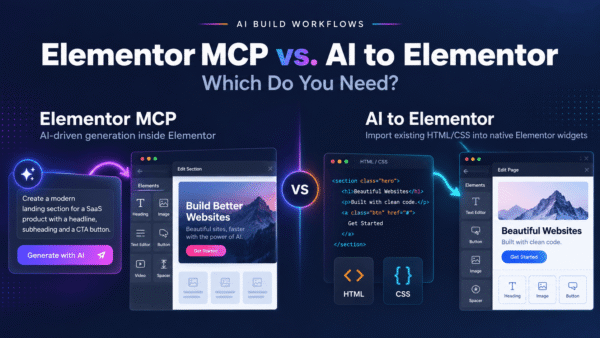
Elementor now has an official MCP, and it is a third route — a good one if you want to design inside Elementor by talking to Claude: it builds real Atomic-editor structure as drafts, on your own Claude subscription. It does not import a finished page. If Claude already gave you the HTML, you would be asking it to rebuild the design widget by widget, with tokens and a correction loop, instead of importing it exactly in a fraction of a second. It also needs the Atomic editor and, for Pro elements, Elementor Pro. So: chat-first design → MCP; page-in-hand → import.
Third-party bridges (Novamira-style MCP servers) sit in the same place with more moving parts: you install and authenticate a server against your site, keep it running, and hand a live pipe into production to an automated agent — while the agent is still translating into Elementor’s format on the fly. For a design that already exists, there is a simpler path that removes both the guessing and the bridge.
The clean method: HTML from Claude → native Elementor widgets
Here’s the key insight. You already have the one thing Claude produces reliably: clean HTML and CSS. You don’t need Claude to also be an Elementor serialization engine. You need a tool that reads that HTML deterministically and builds the corresponding Elementor widgets — every time, the same way.
That’s what AI to Elementor does. It’s a WordPress plugin that parses the HTML and CSS from your Claude design and maps it onto real, native Elementor widgets — headings, text, buttons, images, containers, columns — with your fonts, colors, spacing, CSS animations, and hover states preserved. Because the conversion is rule-based rather than an LLM guessing at JSON, it doesn’t “sometimes work.” It parses what’s actually there and produces valid Elementor output.
The result is a page you can keep editing in Elementor like anything you built by hand — not a flattened image, not an HTML embed block, not a locked template. Native widgets, fully editable. And it works with Elementor Free; you don’t need Pro.
Custom theme or Elementor: which one, when
Pick the custom theme when the site has a developer attached for its whole life, the content is mostly structured records (sermons, events, team members) rather than designed pages, and the client should never be able to move a block. That is exactly the case the tutorial shows, and it is the right tool for it.
Pick Elementor when:
- The site will change hands. A theme Claude wrote is code only its author understands. Elementor is an editor thousands of freelancers already know — if you stop maintaining the site, someone else can pick it up tomorrow without reading your theme.
- The client edits layouts, not just fields. Custom fields let a client fill in a speaker’s name. Elementor lets them add a section, swap a picture, change a button — on the page, where they see it.
- You want speed on the handover. The conversion is seconds per page, and it is deterministic: the same HTML gives the same widgets every time, with no tokens spent — the engine is a parser, not a model. On our test site three real AI-built pages came back in 1.2 to 4.1 seconds each, images and fonts included.
- You need the WordPress plugin ecosystem without custom code. A shop, bookings, memberships or a blog work the normal way: install the plugin, place its widget. Nothing has to be generated into a theme first.
Where the custom theme is simply better: structured content types. Sermons, events or speakers with their own fields come built into Claude’s theme; on the Elementor route you add them with a separate plugin.
From Claude Design to an editable Elementor page
- In Claude Design, Share → download the project as HTML. The archive contains the pages and their images.
- Install the plugin on your WordPress site; it requires Elementor, and the free version of Elementor is enough.
- Upload the archive or paste the HTML — one page per conversion; images are added to your Media Library.
- Open the result in Elementor and edit anything you can see.
For a deeper walkthrough of the general workflow, see our guide on how to convert AI-generated HTML to Elementor, and our AI prompting guidelines for getting cleaner, more convertible HTML out of any AI tool.
What does not survive the conversion
- Tailwind v4. Exports built on Tailwind 4 (OKLCH colour tokens,
@layer/@property) currently convert badly — we measured one and the page came through as unstyled text. Tailwind 3 exports convert well. If your export is v4, wait for the fix or ask Claude for plain CSS. - Anything JavaScript draws. Theme switches, live counters, sliders, carousels: the converter imports the static markup, not the running script.
- Mobile column stacking. Multi-column sections keep their desktop column count on narrow screens, and on one of our three test pages the result was 45 px wider than a 390 px phone viewport, so the page scrolled sideways. You fix both in Elementor in a couple of clicks, but neither is automatic yet.
- Script tags travel with the page. On our Claude test page the converter kept the page’s own
<script>tags inside an HTML widget and rewrote a relativescript.jsinto an absolute URL on the site the HTML came from — so a converted page could load a script from someone else’s domain. Delete that HTML widget after converting until we ship the fix. - Custom content types and Pro widgets. Structured records (events, sermons) need their own plugin on the Elementor route. Forms convert as markup, not as Elementor Pro’s Form widget.
We publish these because you will find them in five minutes anyway.
Before and after: a real Claude page
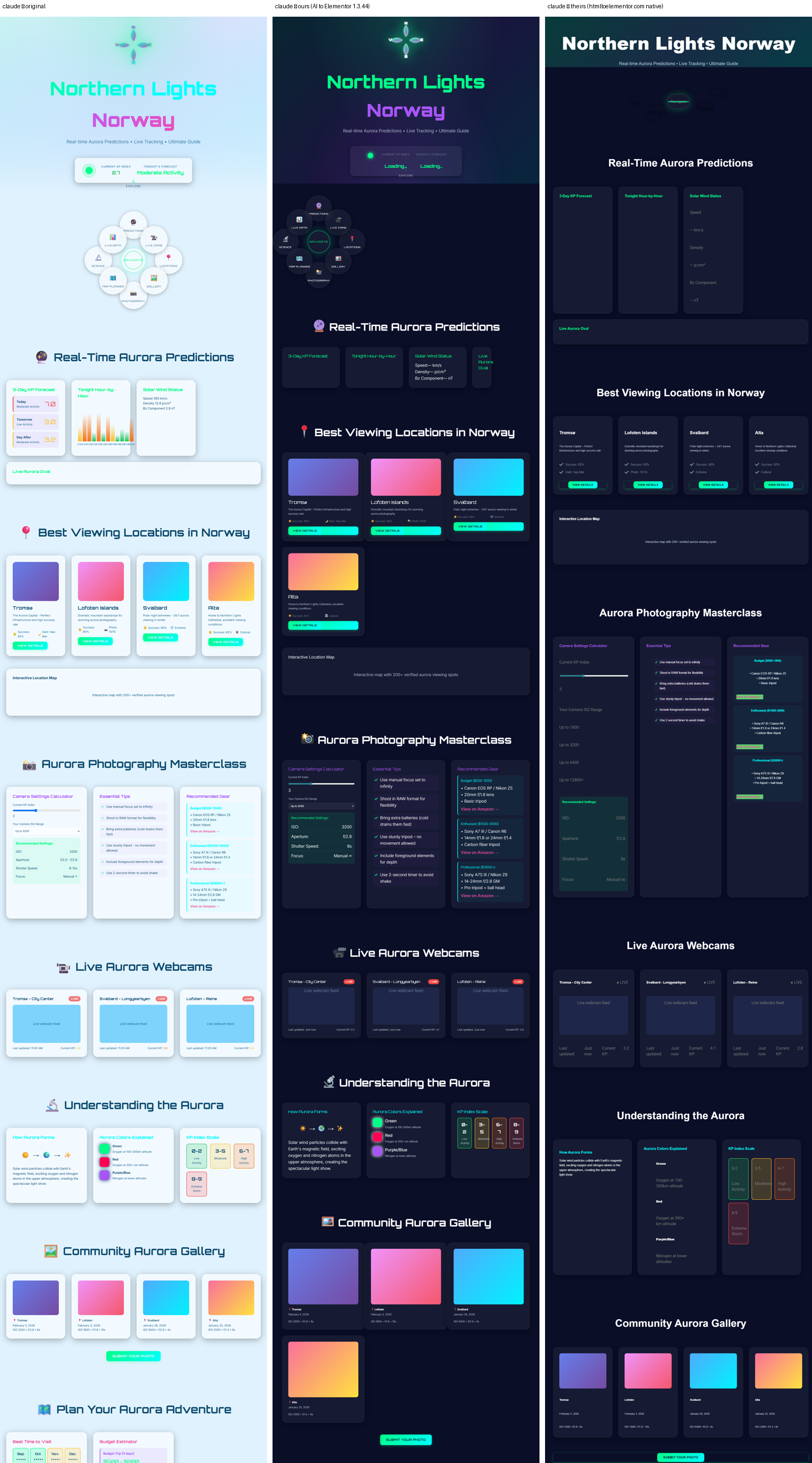
<script> tags came across inside an HTML widget, with a relative script path rewritten to the source site’s domain — delete that widget (see the limits above).Install free on WordPress.org
1 conversion per site, no sign-up. Elementor required (free version is fine).
Frequently asked questions
Can Claude generate Elementor JSON directly?
It can generate something that looks like Elementor JSON, but it’s guessing at an undocumented, versioned schema. In practice these outputs frequently fail to import or produce broken, non-editable layouts. Claude is reliable at HTML and CSS, not at reproducing Elementor’s internal data format. The dependable path is to take Claude’s HTML and convert it with a deterministic tool.
Why does the Elementor import fail with “The source does not support import”?
That error means the JSON’s wrapper or metadata doesn’t match what Elementor’s importer expects. When an LLM writes the JSON by hand, exact key names, structure, and version fields are easy to get subtly wrong — and Elementor’s importer requires them to be exactly right. AI to Elementor sidesteps this entirely by building native widgets from your HTML instead of importing hand-written JSON.
Should I use the official Elementor MCP instead?
Use it when you want to design by chatting with Claude inside Elementor’s Atomic editor — it builds structure from scratch, as drafts, on your own AI subscription. Use AI to Elementor when the page already exists as HTML and you want it in Elementor exactly as designed, in seconds, with no tokens, on the classic editor and Elementor Free. Many people will do both.
Do I need an MCP server or any bridge setup?
No. Bridges require installing a server, authenticating it to WordPress, and keeping it running. AI to Elementor is a single WordPress plugin — you paste Claude’s HTML and convert. No live connection between Claude and your site is needed.
Does it work with Claude Artifacts?
Yes. Artifacts are just rendered HTML and CSS. Open the Artifact’s code view, copy the HTML (and any CSS), and paste it into AI to Elementor. Whether the design came from an Artifact or a plain code block in the chat, the conversion is the same.
Does it work with Elementor Free, or do I need Pro?
It works with Elementor Free. The plugin outputs standard native Elementor widgets, so you don’t need Elementor Pro to use the converted pages.
Are CSS animations and hover states preserved?
Yes. Because the converter reads the actual CSS, it preserves fonts, colors, spacing, CSS animations, and hover states in the resulting widgets — not a flattened screenshot of them.
Can I still edit the result in Elementor afterward?
Yes. The output is real, native Elementor widgets — headings, text, buttons, images, containers, and columns — so you edit them exactly like anything you built by hand. It’s not an HTML embed, an image, or a locked template.
Stop fighting broken imports
Claude is one of the best AI design tools available — let it do what it’s great at. Don’t ask it to also be an Elementor serialization engine, and don’t stand up a bridge just to move a design that already exists into WordPress. Design in Claude, copy the HTML, and let AI to Elementor convert it into native, editable Elementor widgets — deterministically, every time.
Get AI to Elementor and turn your Claude Artifacts into real Elementor pages in minutes. Plans start at $47/year and work with Elementor Free.